
How to access Salesforce Maps
- Navigate to login.saleforce.com and login
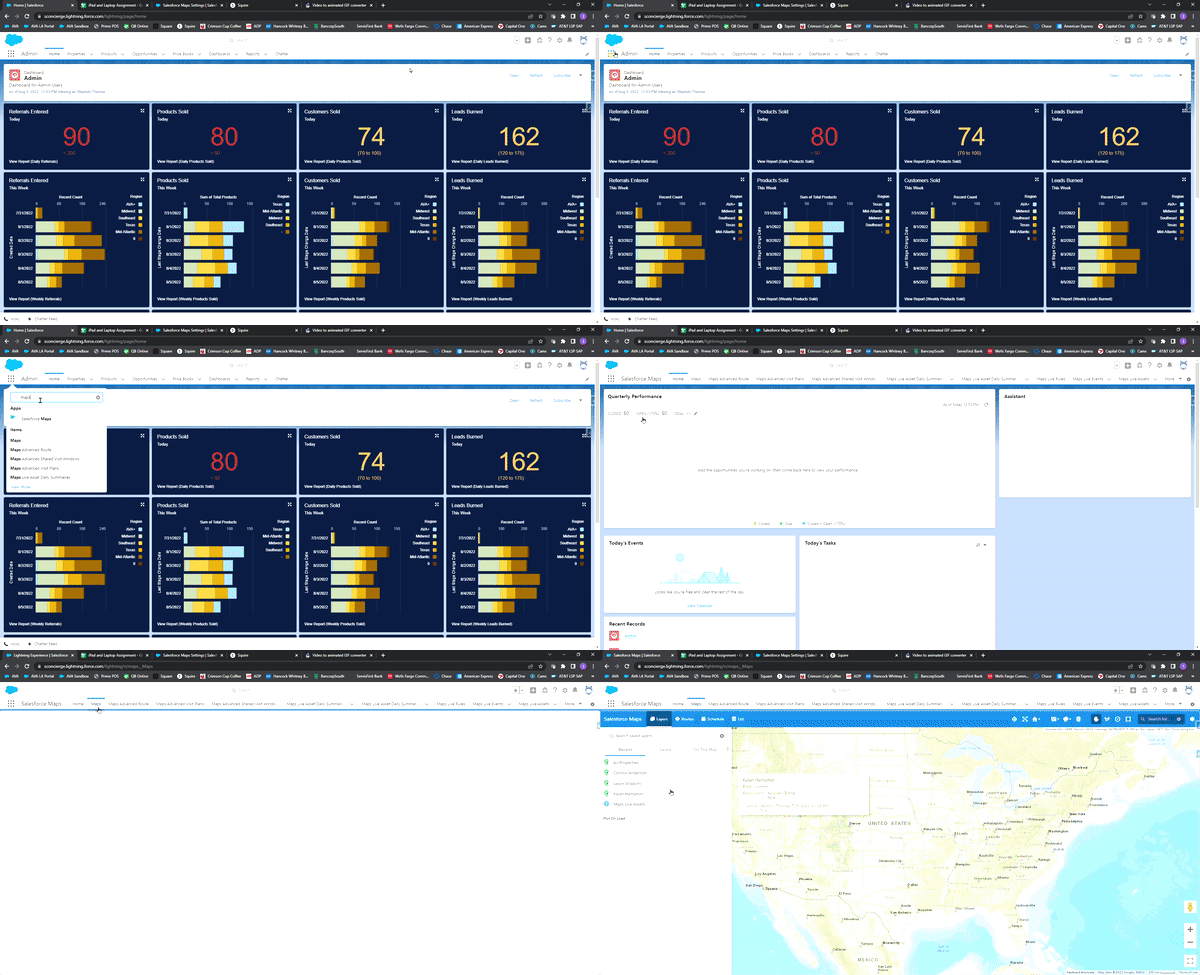
- Select the App Launcher (9 dot button at the top lefthand corner)
- Search “Maps” in search bar
- Select Salesforce Maps app
How to access your properties pins
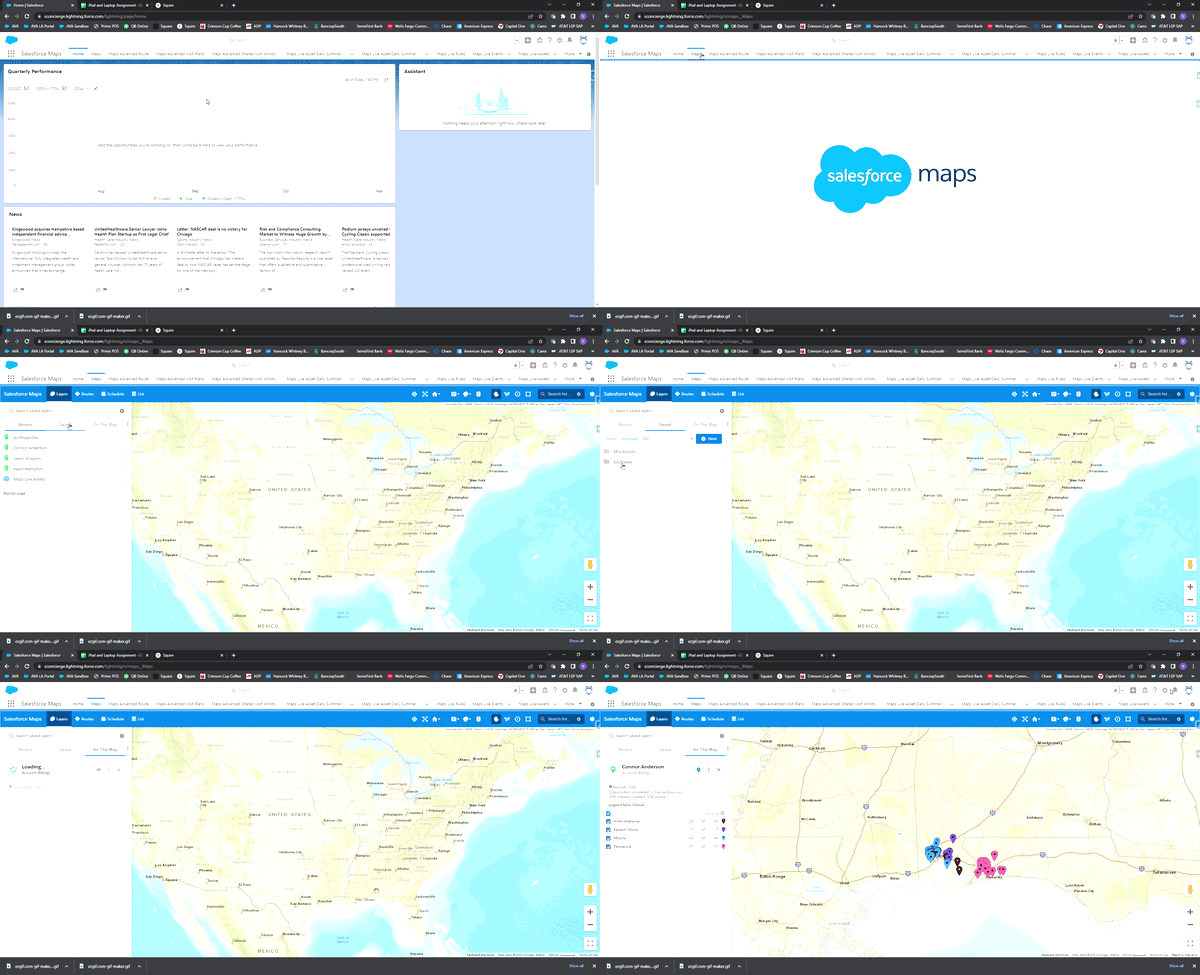
- Select “Maps” tab at the top of the page
- Select “Layers” tab (on blue ribbon)
- Select “Saved” window (below the search bar)
- Select “Corporate” folder
- Select appropriate folder based on VP and Region then select your name
How to use routing tool
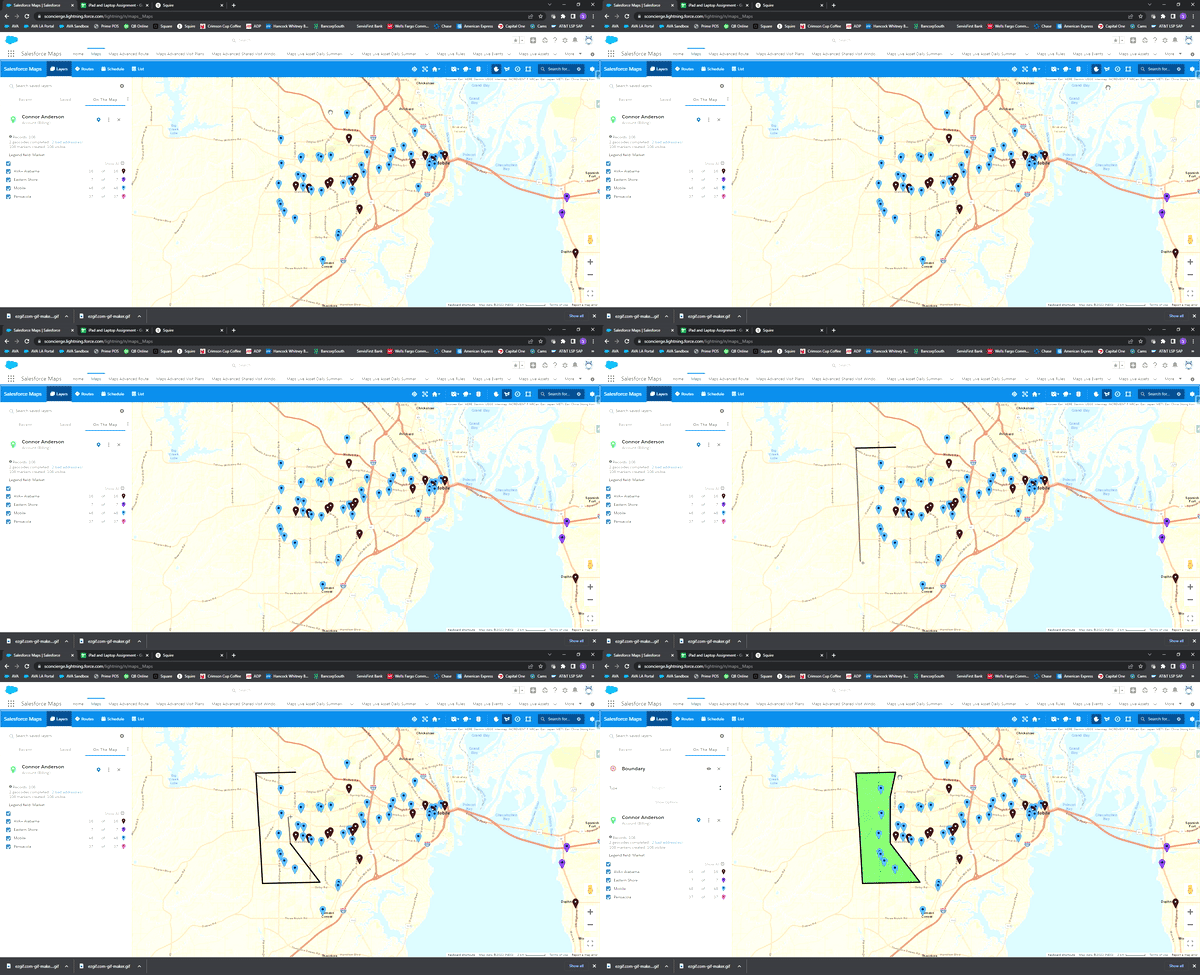
- After accessing pins to your properties, select polygon tool (right side on blue ribbon)
- Note: You can use the polygon, circle, or rectangle tool. They all work the same way.
- Click once to create a starting point for the polygon, click every time you want to create a corner, and click the start of the polygon to complete (all the properties within the boundary will be selected)
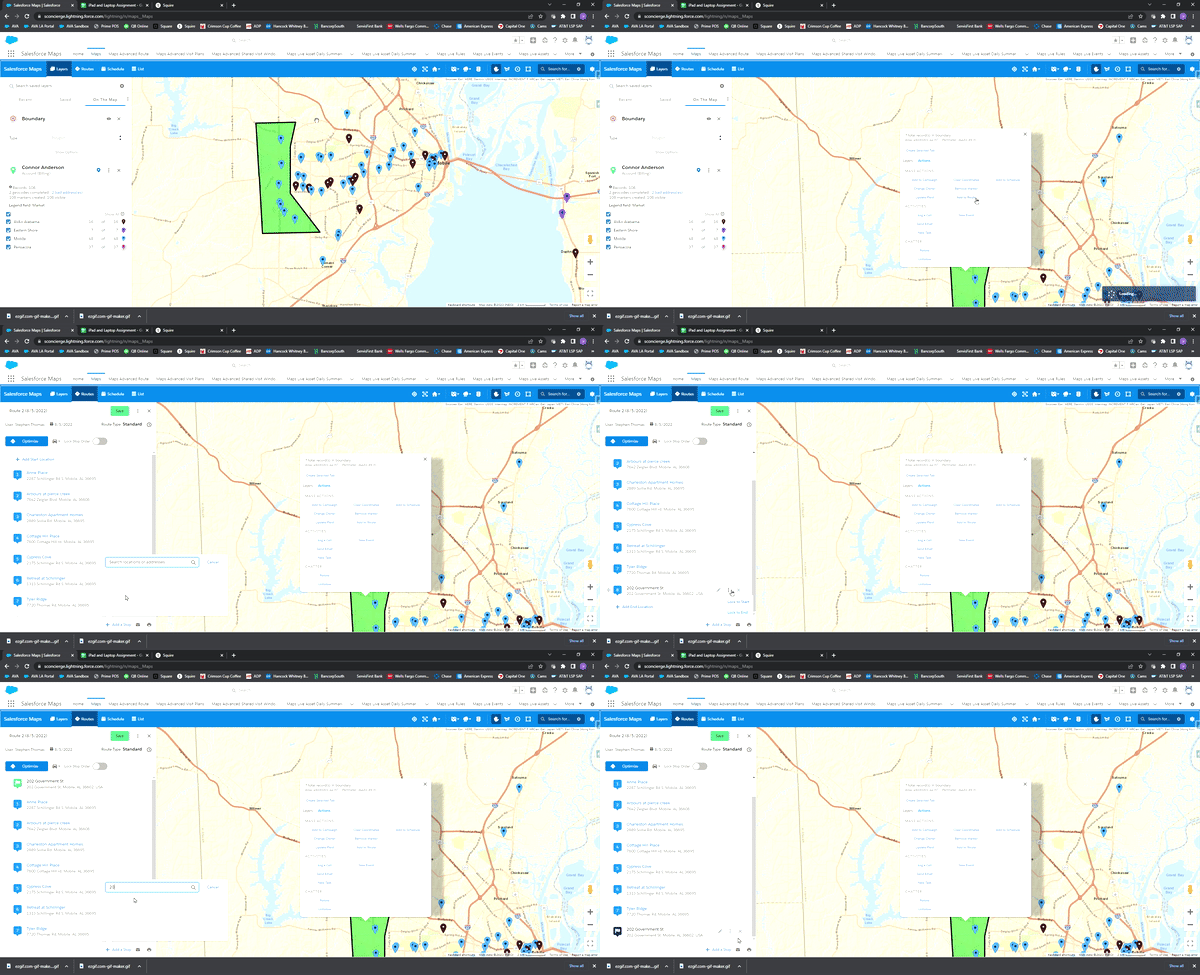
- Select anywhere within the polygon to activate the pop-up
- Select the “Actions” tab
- Select “Add to Route” button under “Mass Actions”
- Select “Add a Stop” at the bottom of the window
- Add your home address, or address of where you will start the route
- Hover mouse over your starting address, select the three dots to the right, then select “Lock to Start”
- Repeat step 7 for your ending destination, hover mouse over your ending address, select the three dots to the right, then select “Lock to End”
- Select “Optimize” button
- Once route has optimized name the route, selcet save button, then select the day you want to perform the route
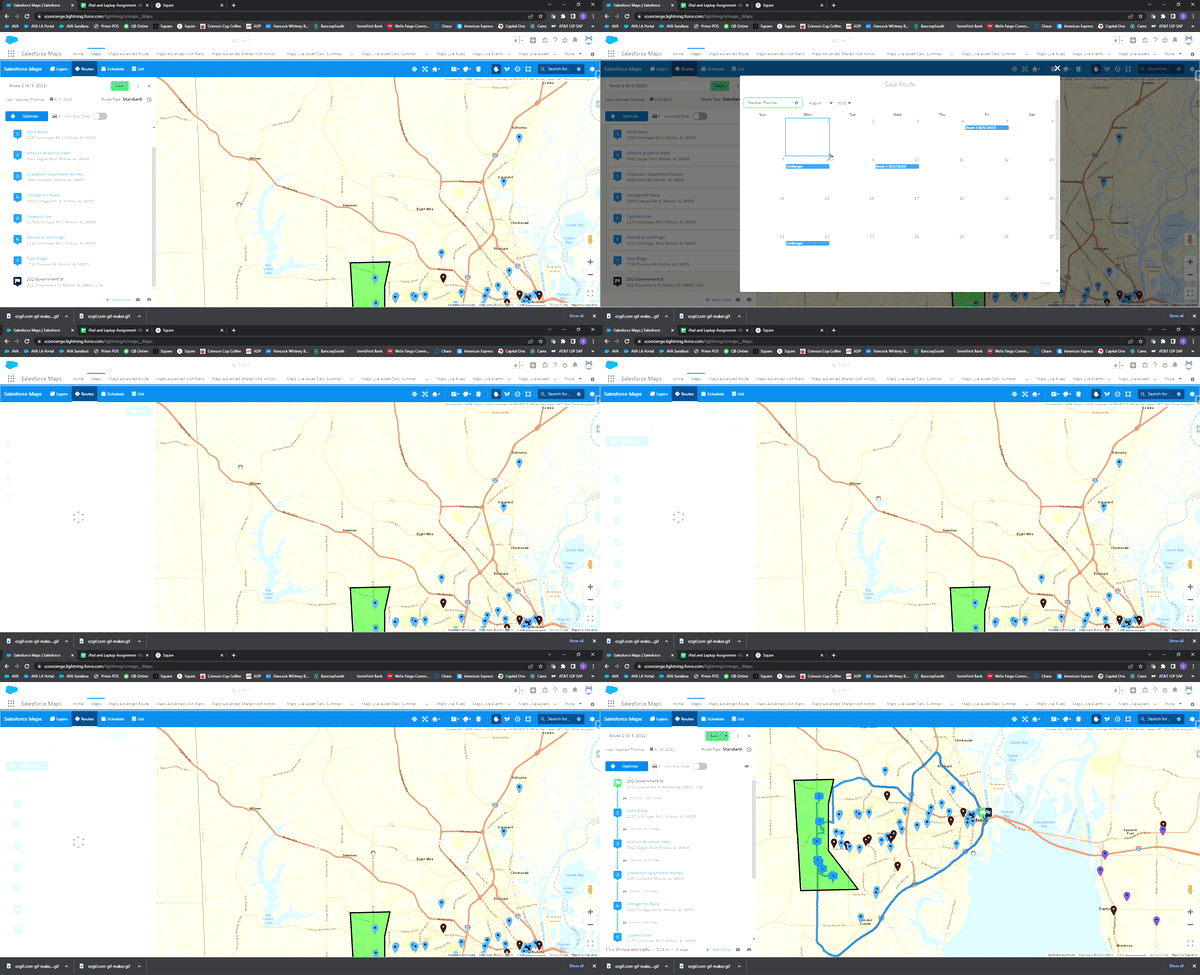
How to duplicate previous route
- In Salesforce Maps “Maps” tab select “Routes” (left side on blue ribbon)
- Select the route you want to duplicate
- Select dropdown next to the save button, select “Save As”, then select the day you want to perform the route
