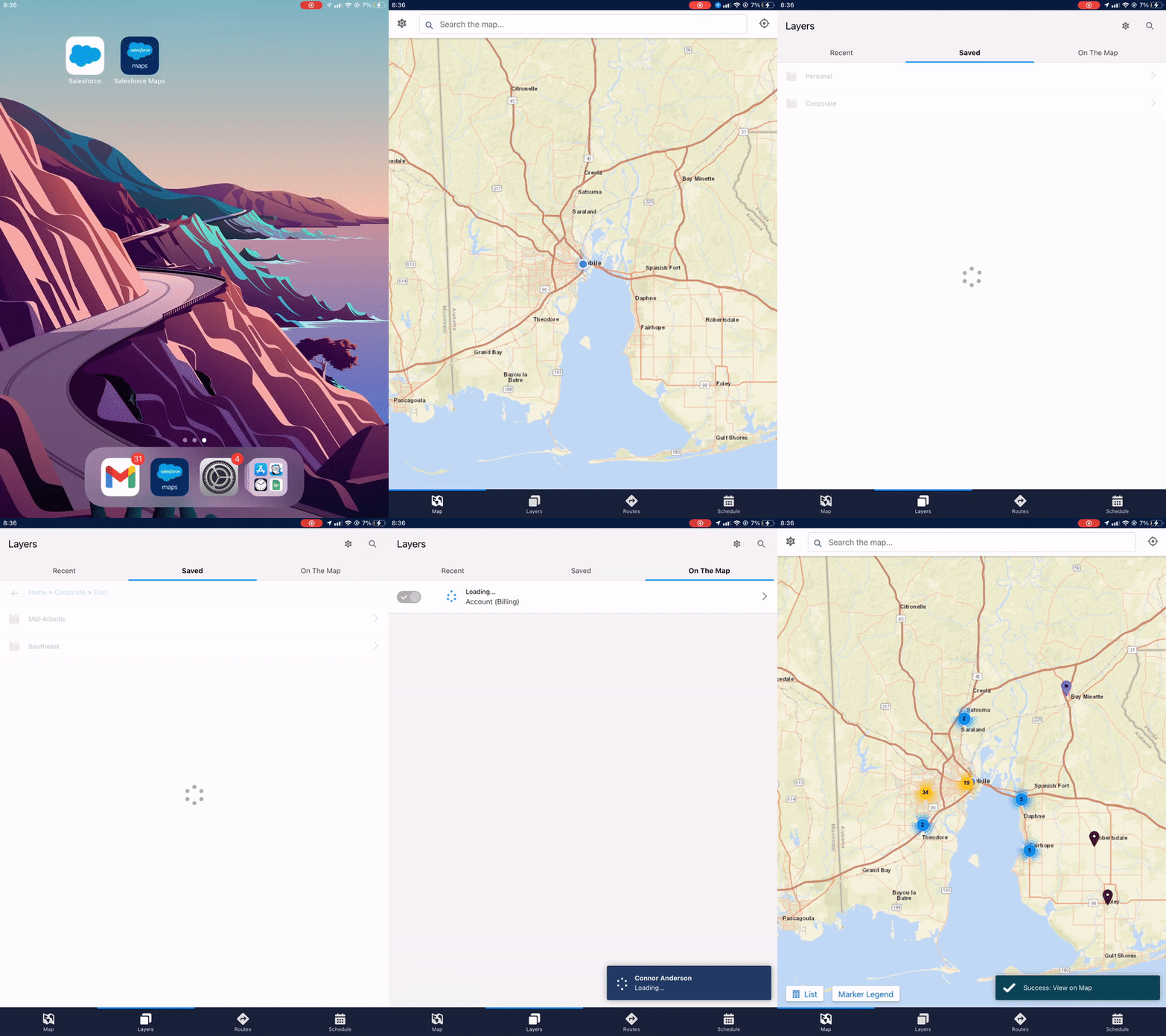
How to access your property pins
- Launch Salesforce Maps app on iPad
- Confirm use of current location
- Select “Layers” tab
- Select “Saved” window
- Select “Corporate” folder
- Select appropriate folder based on VP and Region then select your name
- Select “Map” tab
- Only properties within the viewing window will appear
- Zoom out and hit the blue pin refresh button at the bottom of the screen to load all properties
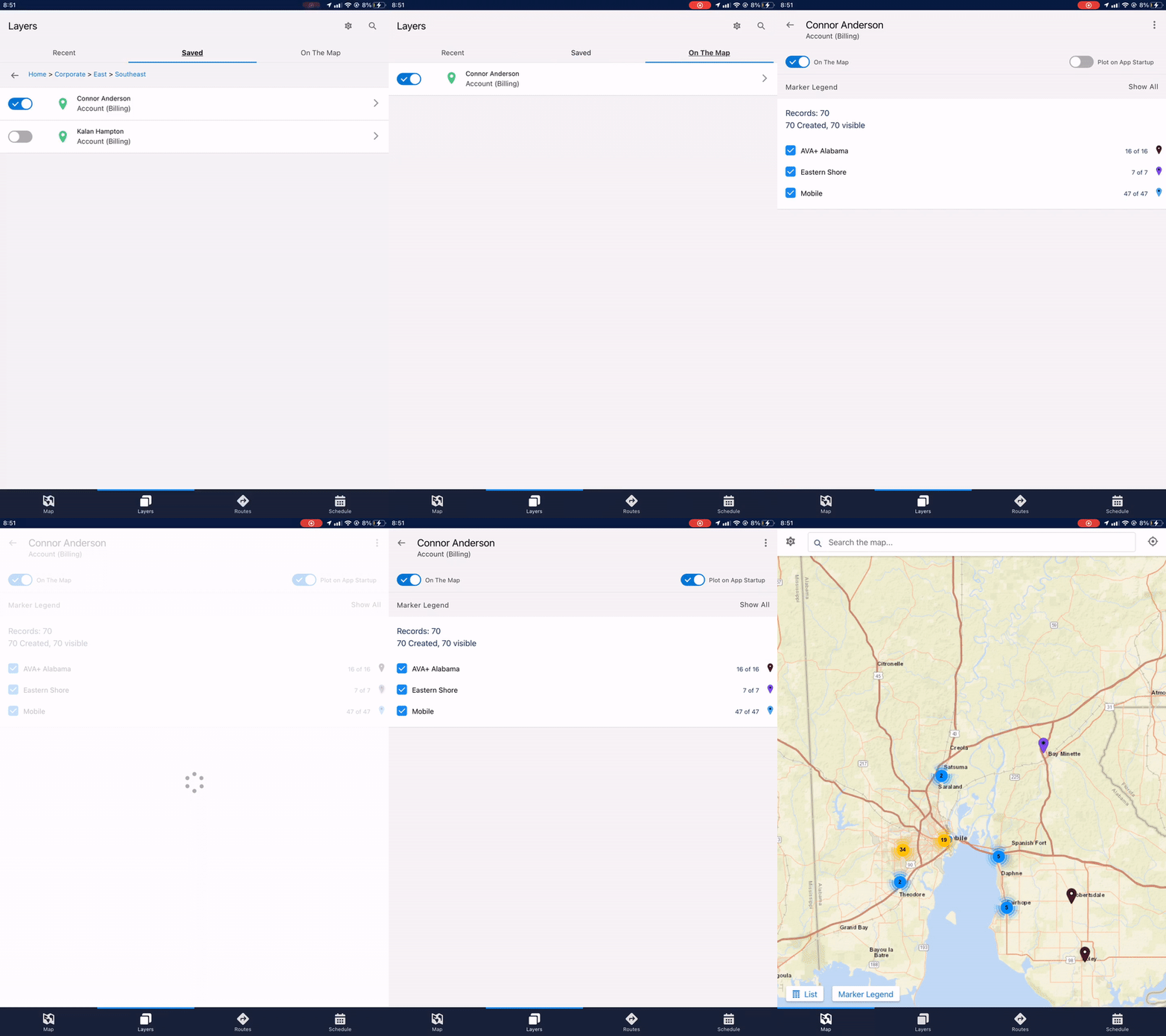
How to set properties to plot on app launch
- After selecting your properties, select “On The Map” window
- Select your name
- Toggle “Plot on App Startup” on
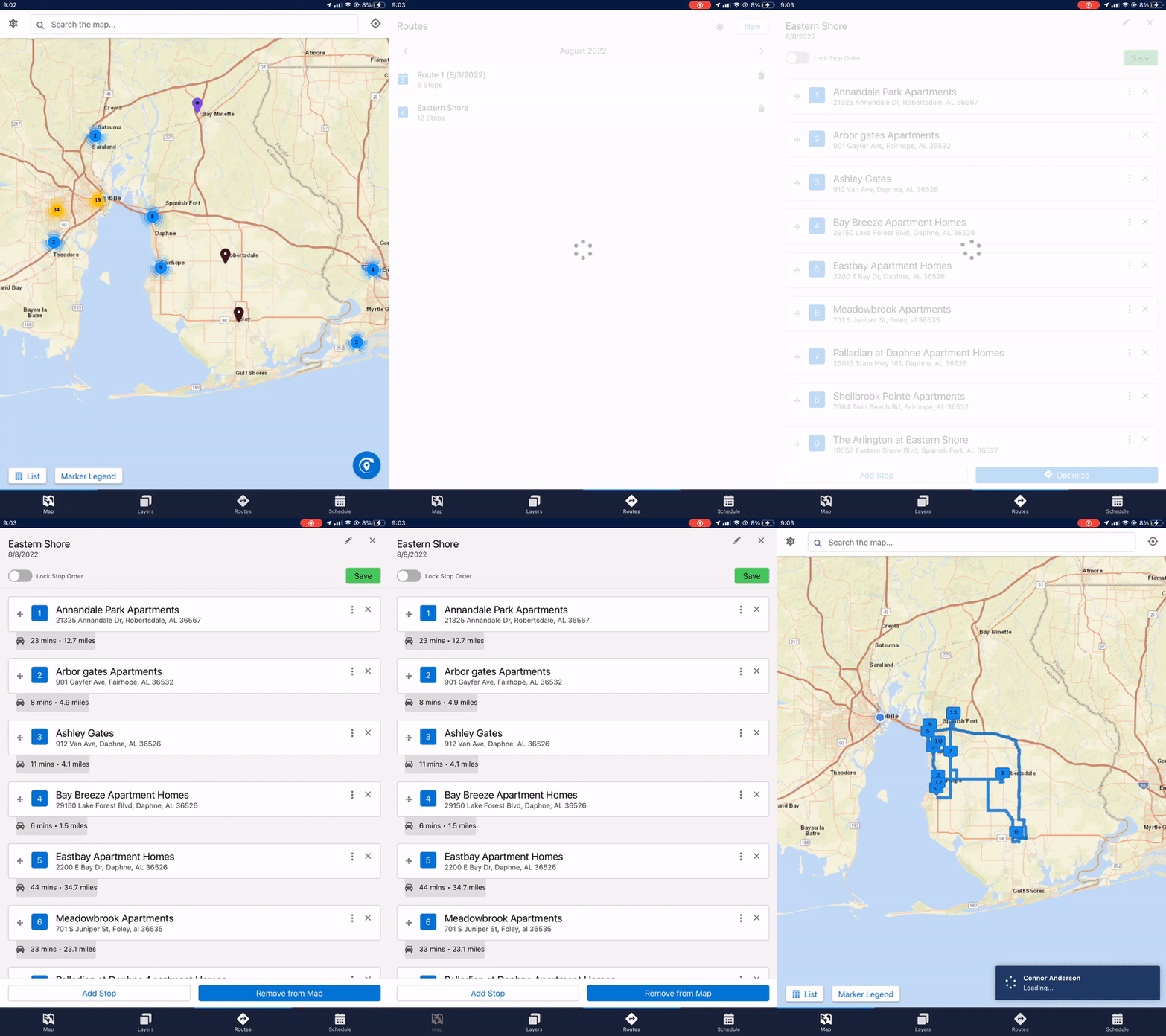
How to plot a route
- Select “Routes” tab
- Select a route to complete for the day
- Routes are displayed a month at a time with the day of the route you selected for the given route displayed to the right in blue
- Return to “Map” tab to see route
- Hit pin refresh button to ensure proper loading of property pins
- You will need to load your properties onto the maps if you have not already done this
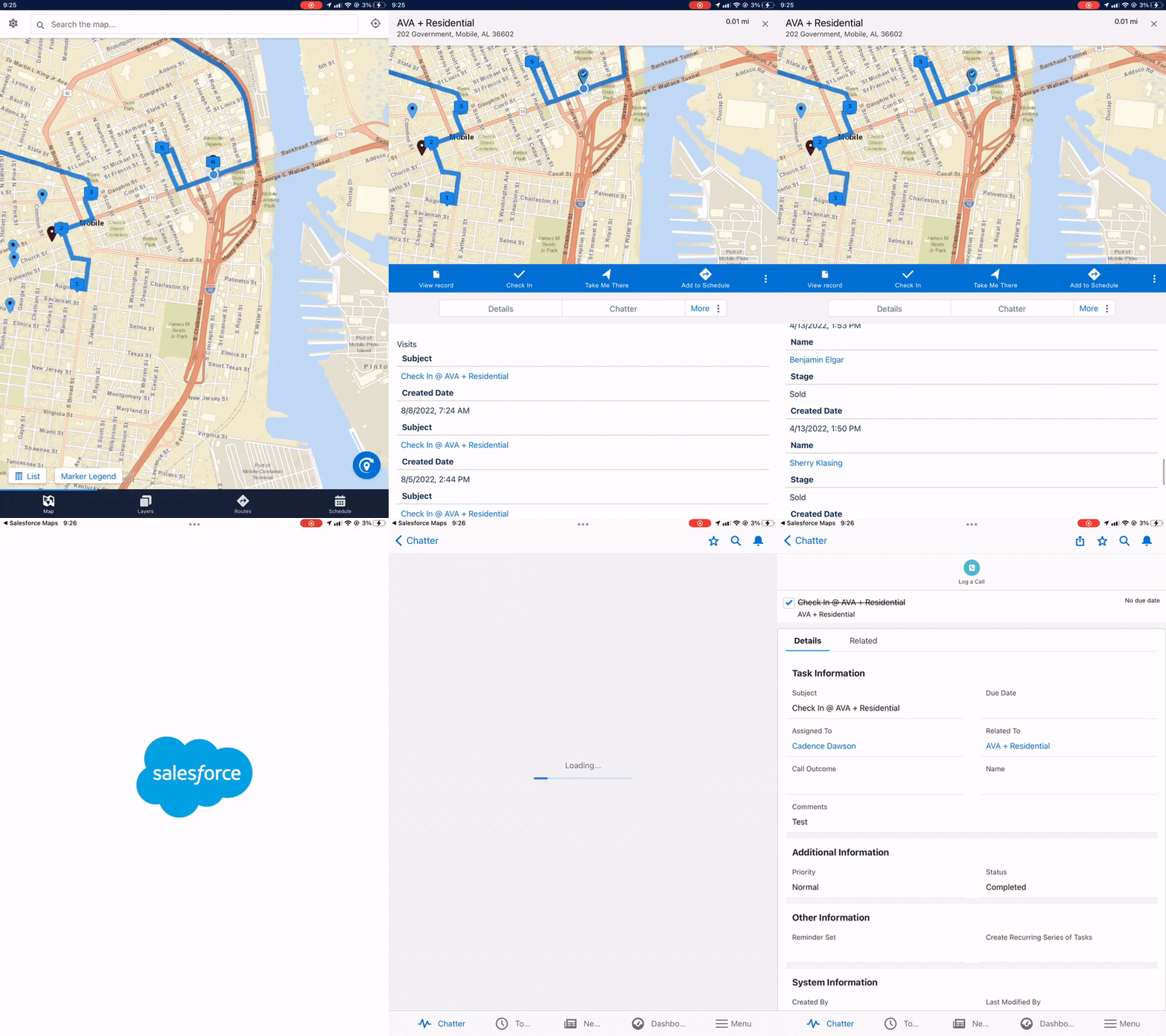
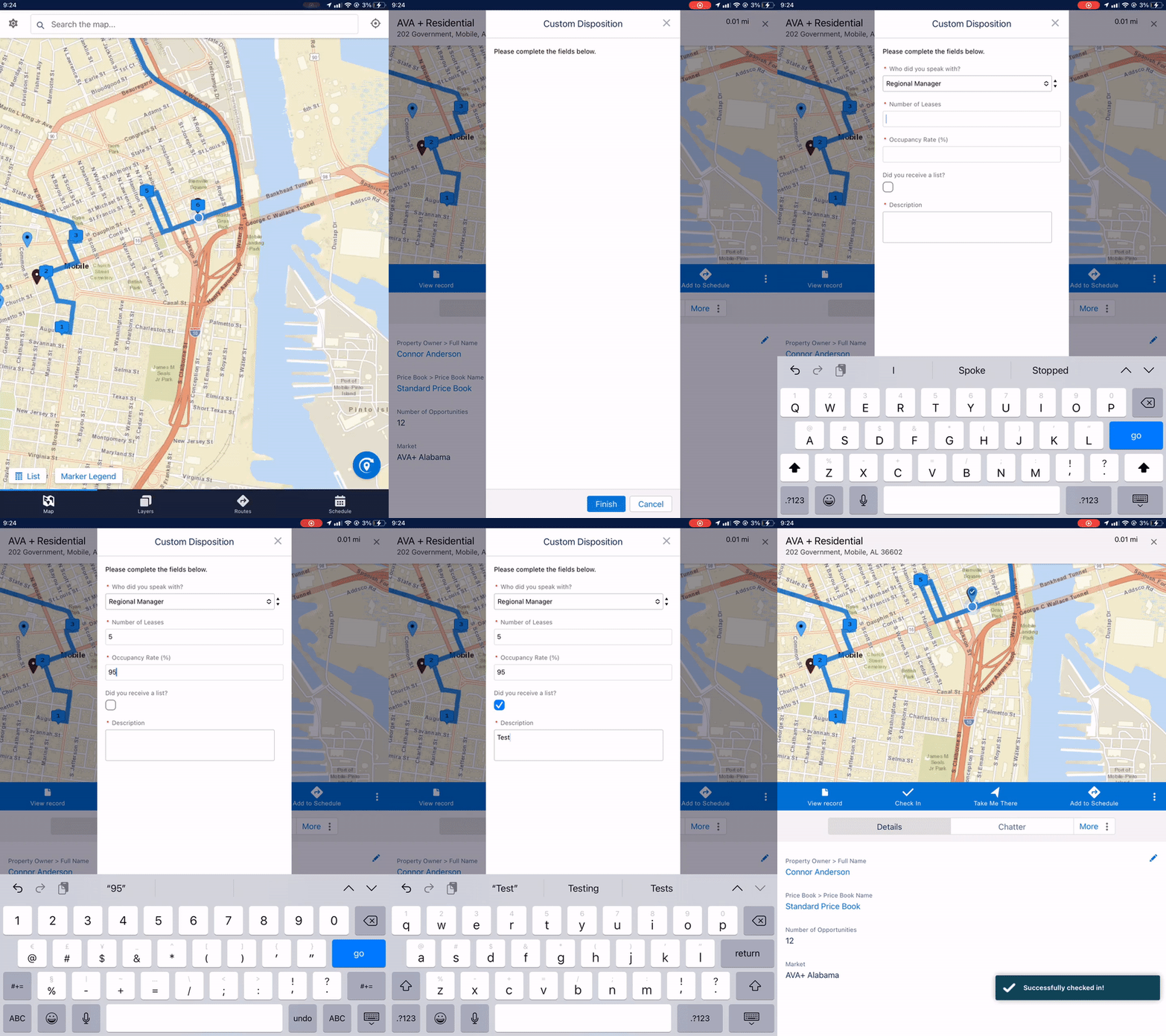
How to check into a property
- After completing a visit, select property pin of the property you just visited
- Select “Check In” on the blue ribbon
- Complete all appropriate fields within the form
- Select blue “Finish” button at the bottom of the screen
How to locate previous referrals and visit notes for a property
- Select the appropriate property pin
- Select “More” button below the blue ribbon
- Select “Related List” from list
- You will be able to see the last five visits and the last ten opportunities in descending order with the most recent first
- You can view previous visit notes by selecting the Check In, this will navigate you to the Salesforce app to view the notes